Hi,
Install top utility to findout resource consumption in solaris.
Go to www.sunfreeware.com.
Select your OS and platform.
Then find the top package. It will be in a gzip format.
Download this and get it on your server.
Then use gunzip to unzip the file (gunzip filename.gz).
Finally, used pkgadd to add the top package (pkgadd -d filename).
Regards,
Gagan
Friday, May 22, 2009

Sunday, May 3, 2009
SMS Setting in SAP (SCOT Configuration for SMS)
HI All ,
Here i am sharing the procedure/configuration to send the message from SAP .
Go to T-code SCOT
You will see screen like this
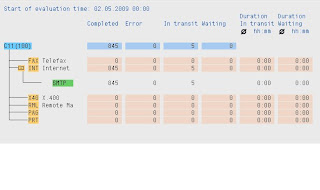
Click on PAG and then create button on same screen
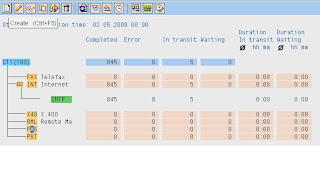
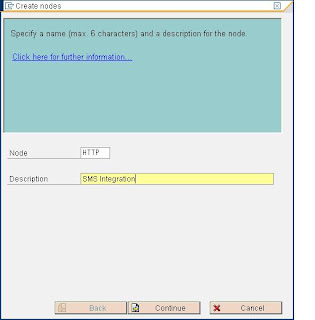
Provide detail as:
NODE: HTTP
Description: SMS Integration
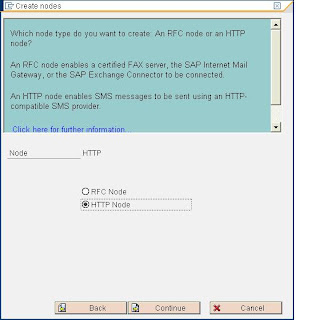
Select HTTP Node
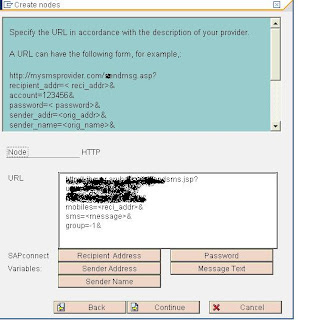
Provide URL provided by third party
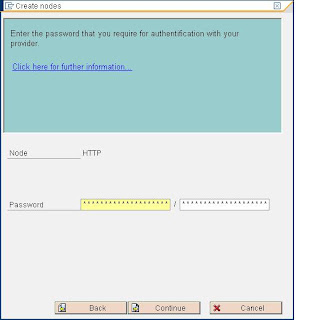
Keep password this field blank as we have provided the same in URL itself
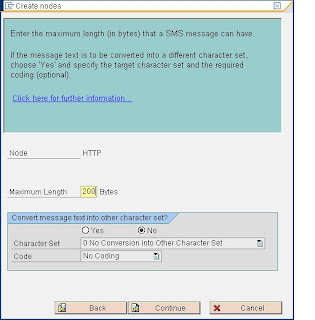
Provide maximum length of character allowed by service provider
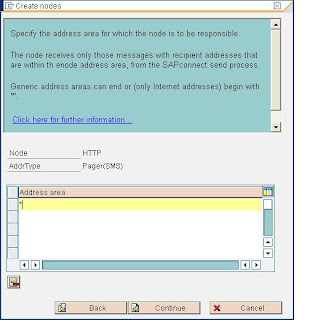
Provide field address area as *
Provide the time in minutes or hours (depends )
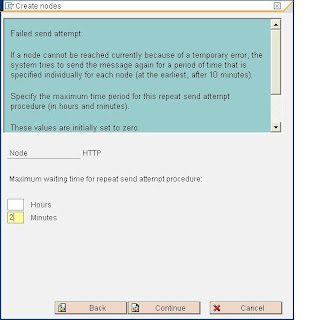
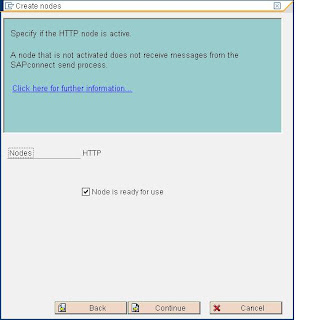
Select Node is ready to Use
Now you can see HTTP service
HTTP Virtual host Configuration
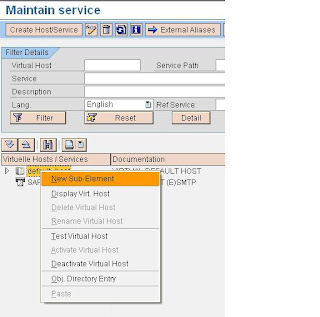
Go to T-code SICF and select default host and then New Sub element
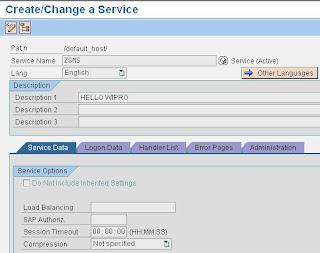
In Log-on tab provide user name and password for same client
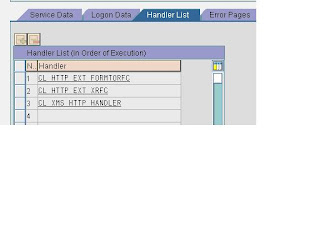
Click on HANDLER List tab and provide the handler as shown below
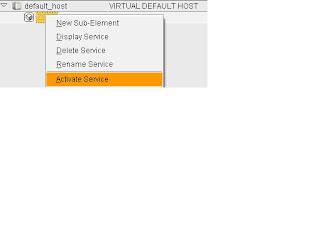
Finally activate the service
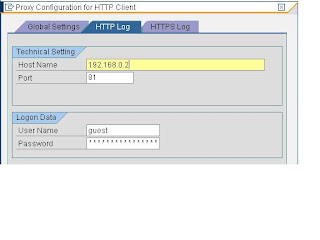
HTTP Client proxy setting:
In same T-code SICF
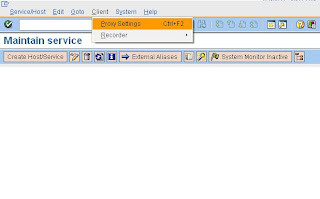
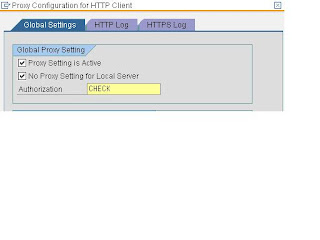
In HTTP Log tab provide proxy detail
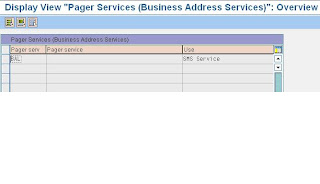
Maintain pager Service
Go to Client 000 and run t-code SA14
Provide detail as shown below
Pager Serv: BAL
Use :SMS Service
Go to SPRO in your customizing client
SAP Web Application Server Basis Services Address Management Define pager services
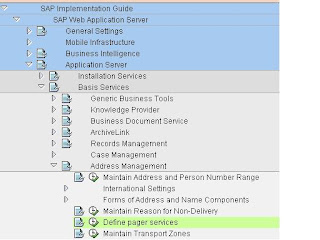
Provide detail
Pager serv : SMS
Pager service : SMS
Use : SMS Service
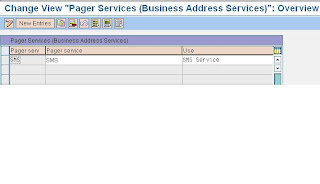
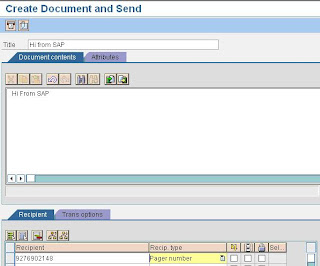
Composing a SMS
Go to T-code SBWP
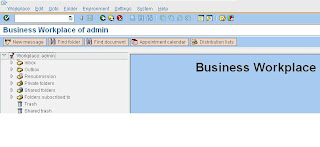
Click on New Message
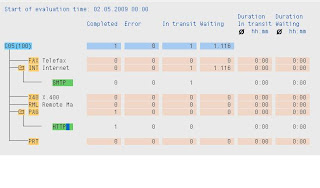
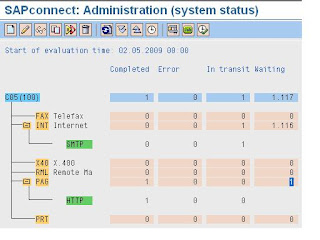
To monitor the process go to T-code SCOT here you can see 1 in waiting as we have given time for 2 minutes it will send the message after 2 min only
Go to T-code SOST and here we can check the status of message
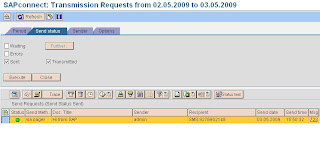
That's all now you can check you mobile phone for Message :)
Regards,
Gagan Deep Kaushal
Here i am sharing the procedure/configuration to send the message from SAP .
Go to T-code SCOT
You will see screen like this

Click on PAG and then create button on same screen

Provide detail as:
NODE: HTTP
Description: SMS Integration

Select HTTP Node

Provide URL provided by third party

Keep password this field blank as we have provided the same in URL itself

Provide maximum length of character allowed by service provider

Provide field address area as *

Provide the time in minutes or hours (depends )

Select Node is ready to Use

Now you can see HTTP service

HTTP Virtual host Configuration
Go to T-code SICF and select default host and then New Sub element


In Log-on tab provide user name and password for same client
Click on HANDLER List tab and provide the handler as shown below

Finally activate the service

HTTP Client proxy setting:
In same T-code SICF


In HTTP Log tab provide proxy detail

Maintain pager Service
Go to Client 000 and run t-code SA14
Provide detail as shown below
Pager Serv: BAL
Use :SMS Service

Go to SPRO in your customizing client
SAP Web Application Server Basis Services Address Management Define pager services

Provide detail
Pager serv : SMS
Pager service : SMS
Use : SMS Service

Composing a SMS
Go to T-code SBWP

Click on New Message

To monitor the process go to T-code SCOT here you can see 1 in waiting as we have given time for 2 minutes it will send the message after 2 min only

Go to T-code SOST and here we can check the status of message

That's all now you can check you mobile phone for Message :)
Regards,
Gagan Deep Kaushal
Wednesday, April 29, 2009
Run OS Commands from SAP GUI
Hi All,
What a interesting piece of information now you can run os commands from SAP GUI.
Just run report RSBDCOS0 in SA38 and enjoy .
You can change working directory and all.Now no need to ask sysadmin to give password also . :)
Hope all basis will enjoy now..Specially junior guys..
Enjoy maadi....
Regards,
Gagan Deep kaushal
What a interesting piece of information now you can run os commands from SAP GUI.
Just run report RSBDCOS0 in SA38 and enjoy .
You can change working directory and all.Now no need to ask sysadmin to give password also . :)
Hope all basis will enjoy now..Specially junior guys..
Enjoy maadi....
Regards,
Gagan Deep kaushal
Registering a program on the Gateway
RFC connection test in SM59 might give error similar to this
———————————————————————————————————
Logon Connection Error
Error Details Error when opening an RFC connection
Error Details ERROR: program not registered
Error Details LOCATION: SAP-Gateway on host / sapgw
Error Details DETAIL: TP not registered
Error Details COMPONENT: SAP-Gateway
Error Details COUNTER: 16793
Error Details MODULE: gwr3cpic.c
Error Details LINE: 1694
Error Details RETURN CODE: 679
Error Details SUBRC: 0
Error Details RELEASE: 700
Error Details TIME: Mon APR 17 13:08:02 2009
Error Details VERSION: 2
———————————————————————————————————
The program in the above error should be registered in the gateway for this connection test to complete successfully. The server program rfcexec is responsible for its registration on the gateway.
To register the program login into the OS level as sudo su -adm and execute the following command.
rfcexec –g -a -x
rfcexec is the server program name, the can be obtained from SM59, it is case sensitive and should match with the entry in SM59. The and can be obtained from the transaction SMGW. When this command is executed it goes to a hanging loop.
The connection will fail once this command is terminated or the user executing this command logs off
To avoid this, instead of using the above mentioned command an entry should be made in the file saprfc.ini
To do this, execute the following command
sudo su -adm
rfcexec –D
is the RFC destination name in SM59
So now we are done with registering the server program, but how do we check it is registered, once a server program is registered it is displayed in the Logged on clients in SMGW.
In transaction SMGW choose GOTO-> Logged on clients. There should be an entry for the server program in the screen that is displayed with system type Registered_TP (which indicates that the program is registered)
There can be many reasons due to which we might get this error saying server program is not registered, once such instance which I faced was where in the TREX server, a new RFC destination was defined, the TREX server creates a new program id each time this RFC destination is defined. This program id was not changed in TCP/IP connection is SM59 which was the reason why the destination was failing
Regards,
Gagan Deep Kaushal
———————————————————————————————————
Logon Connection Error
Error Details Error when opening an RFC connection
Error Details ERROR: program
Error Details LOCATION: SAP-Gateway on host
Error Details DETAIL: TP
Error Details COMPONENT: SAP-Gateway
Error Details COUNTER: 16793
Error Details MODULE: gwr3cpic.c
Error Details LINE: 1694
Error Details RETURN CODE: 679
Error Details SUBRC: 0
Error Details RELEASE: 700
Error Details TIME: Mon APR 17 13:08:02 2009
Error Details VERSION: 2
———————————————————————————————————
The program in the above error should be registered in the gateway for this connection test to complete successfully. The server program rfcexec is responsible for its registration on the gateway.
To register the program login into the OS level as sudo su -
rfcexec –g
rfcexec is the server program name, the
The connection will fail once this command is terminated or the user executing this command logs off
To avoid this, instead of using the above mentioned command an entry should be made in the file saprfc.ini
To do this, execute the following command
sudo su -
rfcexec –D
So now we are done with registering the server program, but how do we check it is registered, once a server program is registered it is displayed in the Logged on clients in SMGW.
In transaction SMGW choose GOTO-> Logged on clients. There should be an entry for the server program in the screen that is displayed with system type Registered_TP (which indicates that the program is registered)
There can be many reasons due to which we might get this error saying server program is not registered, once such instance which I faced was where in the TREX server, a new RFC destination was defined, the TREX server creates a new program id each time this RFC destination is defined. This program id was not changed in TCP/IP connection is SM59 which was the reason why the destination was failing
Regards,
Gagan Deep Kaushal
Thursday, April 16, 2009
SAP Notes--That help me a lot
Hi,
Through this blog i want to share some SAP note number that can help you in particular scenario because sometime its difficult to find out the same in service market place ......
Administration:
Note 121178 - NT: Installation note for SSO Single Sign On
Note 1171650 - Automated Oracle DB parameter check
Note 830576 - Parameter recommendations for Oracle 10g
Note 153641 - Swap space requirement for R/3 64-bit kernel
Note 570375 - SAP on Sun Solaris: Swap Space and Paging
Note 63906 - Explanation for SWAP SPACE sizes in ST06
Note 150380 - Is MIT Kerberos 5 supported for use with SNC ?
Note 981875 - Optimizer merge fix for Oracle 10.2.0.2
CRM
Note 1152612 - Incorrect component type in structure WRMA_S_RESULT_DATA
Note 724713 - parameter settings for Solaris 10
Note 1038204 - Setting Up the Help Center in SAP CRM
Note 1318162 - Performance problem with document search in CRM
Note 1162685 - SAP CRM 2007 Webclient performance
Note 1277476 - Performance Issues with browser caching of Mime
Note 1255130 - WEBCUIF: Frontend performance w.r.t PAI and table
Note 1247380 - THTMLB cellerator resizing performance enhancement
Through this blog i want to share some SAP note number that can help you in particular scenario because sometime its difficult to find out the same in service market place ......
Administration:
Note 121178 - NT: Installation note for SSO Single Sign On
Note 1171650 - Automated Oracle DB parameter check
Note 830576 - Parameter recommendations for Oracle 10g
Note 153641 - Swap space requirement for R/3 64-bit kernel
Note 570375 - SAP on Sun Solaris: Swap Space and Paging
Note 63906 - Explanation for SWAP SPACE sizes in ST06
Note 150380 - Is MIT Kerberos 5 supported for use with SNC ?
Note 981875 - Optimizer merge fix for Oracle 10.2.0.2
CRM
Note 1152612 - Incorrect component type in structure WRMA_S_RESULT_DATA
Note 724713 - parameter settings for Solaris 10
Note 1038204 - Setting Up the Help Center in SAP CRM
Note 1318162 - Performance problem with document search in CRM
Note 1162685 - SAP CRM 2007 Webclient performance
Note 1277476 - Performance Issues with browser caching of Mime
Note 1255130 - WEBCUIF: Frontend performance w.r.t PAI and table
Note 1247380 - THTMLB cellerator resizing performance enhancement
Tuesday, April 14, 2009
Problem in transport
Hi All,
Recently i have faced a issue with long running transports the reasons is some corrupted transports. So once you met this error you will not be able to even transport any other request.So here is the procedure through which you can resolve any issue related to STMS
1.) Ask everybody to leave the STMS transaction
2.) Ensure that there are no running transports (I mean currently
started) and kill all "tp" processes on all application server of BWP
3.) Copy to another location the content of /usr/sap/trans/tmp
afterwards truncate the content of /usr/sap/trans/tmp
4.) Delete the content of TRBAT and TRJOB tables on BWP if they
containing some entries
5.) Please take a screenshot of the Import Monitor of BWP and after that delete the entry within
6.) Start the failing imports again.
Enjoy Maadi...............
Regards,
Gagan Deep Kaushal
Recently i have faced a issue with long running transports the reasons is some corrupted transports. So once you met this error you will not be able to even transport any other request.So here is the procedure through which you can resolve any issue related to STMS
1.) Ask everybody to leave the STMS transaction
2.) Ensure that there are no running transports (I mean currently
started) and kill all "tp" processes on all application server of BWP
3.) Copy to another location the content of /usr/sap/trans/tmp
afterwards truncate the content of /usr/sap/trans/tmp
4.) Delete the content of TRBAT and TRJOB tables on BWP if they
containing some entries
5.) Please take a screenshot of the Import Monitor of BWP and after that delete the entry within
6.) Start the failing imports again.
Enjoy Maadi...............
Regards,
Gagan Deep Kaushal
Monday, April 13, 2009
How to change default log-off url in CRM web ui ??
HI All,
In CRM new WEB UI, when profile other than IC_AGENT is assigned, there will be a system link "Log Off". When user clicks on it, the web ui session will be killed, and a page will be displayed. Normally it will be http://www.sap.com.
So here i am sharing how to change that link
In spro->Customer Relationship Management->UI Framework
->Technical Role Definition->Define Technical Profile
The field URL serves for this purpose.
So change the URL in url field and next time when you click log-off it will display your customized page.
CHEERS...............
Regards,
Gagan Deep Kaushal
In CRM new WEB UI, when profile other than IC_AGENT is assigned, there will be a system link "Log Off". When user clicks on it, the web ui session will be killed, and a page will be displayed. Normally it will be http://www.sap.com.
So here i am sharing how to change that link
In spro->Customer Relationship Management->UI Framework
->Technical Role Definition->Define Technical Profile
The field URL serves for this purpose.
So change the URL in url field and next time when you click log-off it will display your customized page.
CHEERS...............
Regards,
Gagan Deep Kaushal
Subscribe to:
Posts (Atom)


